Dashboard
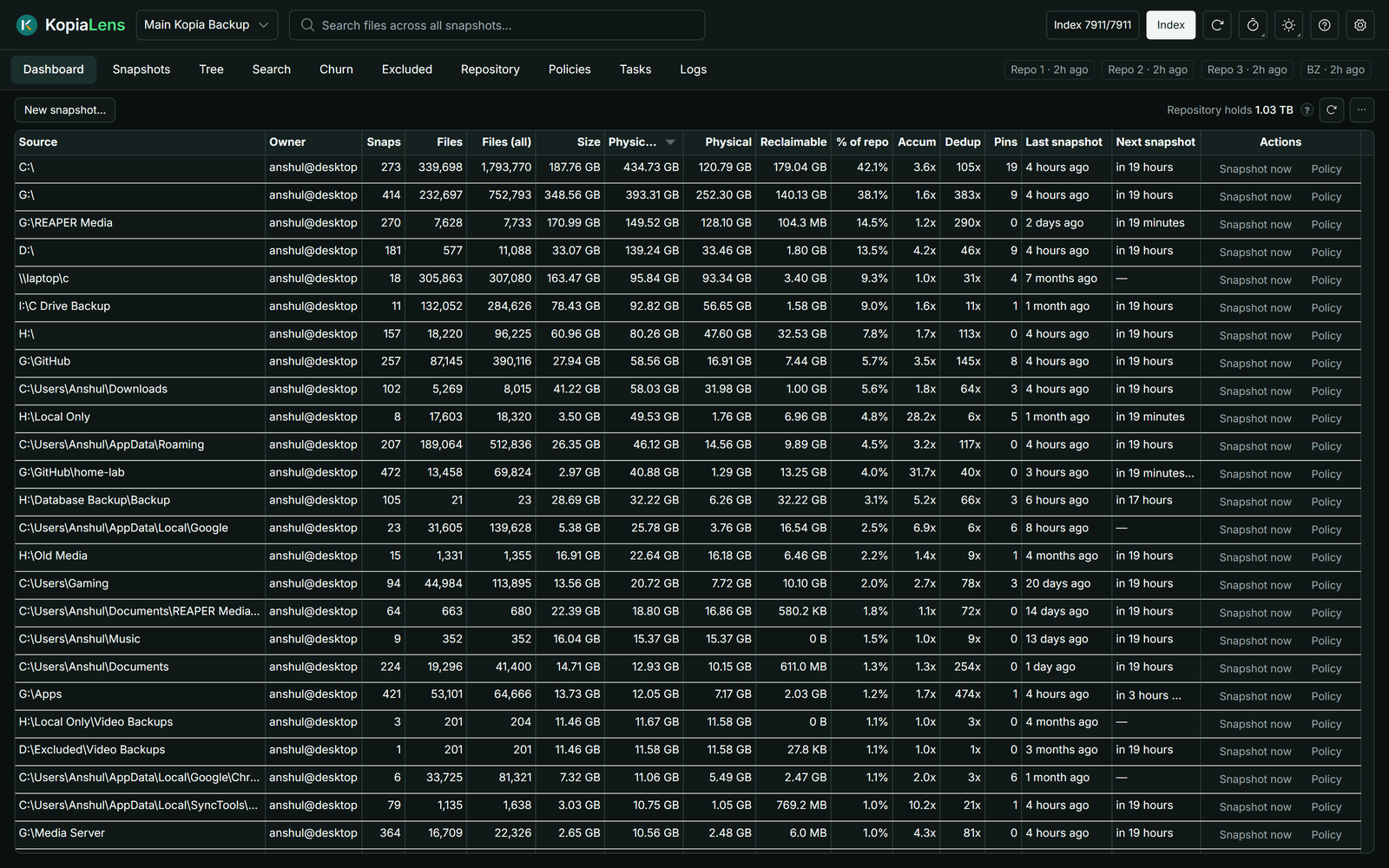
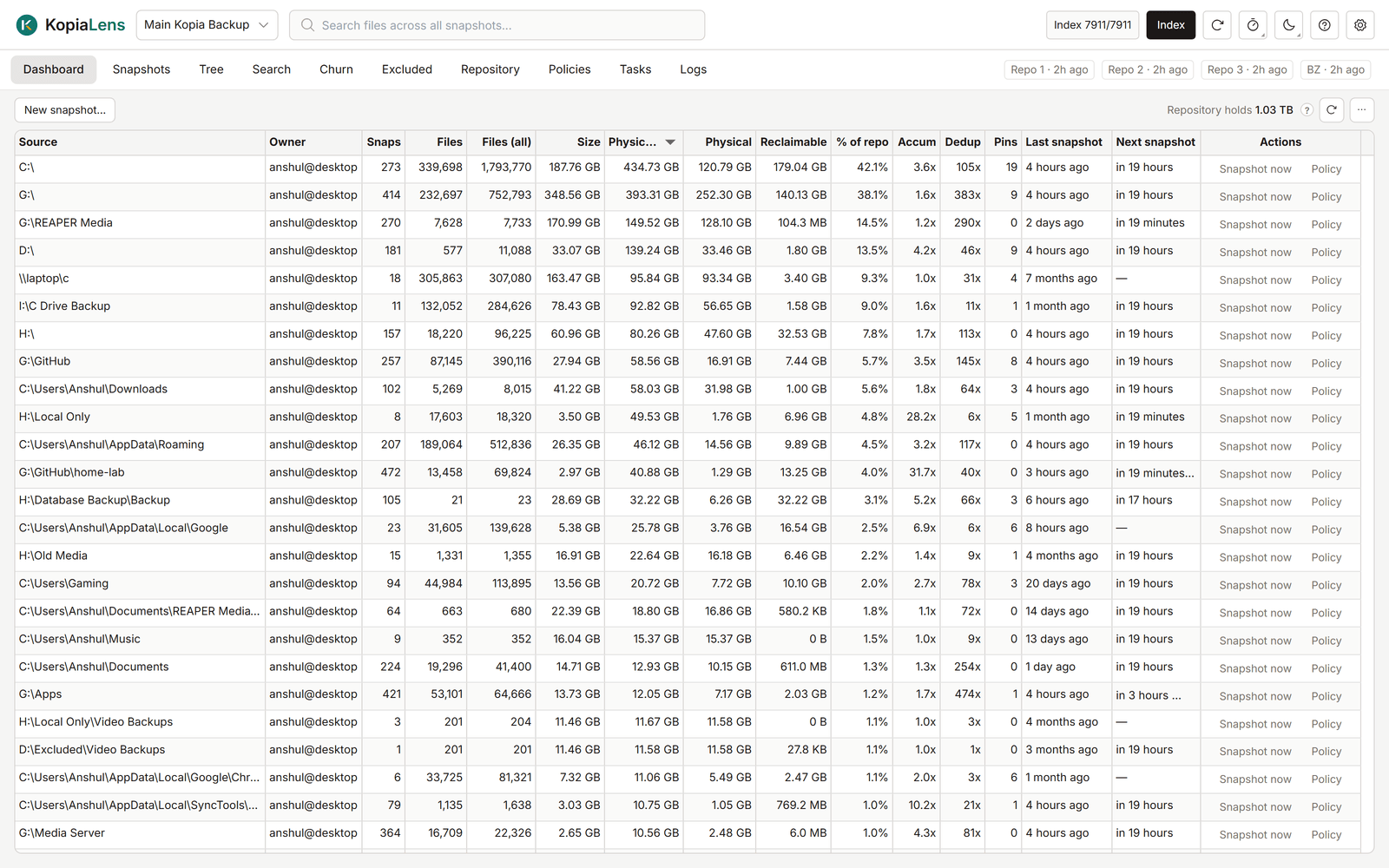
The Dashboard lists every source in the repository, with what each one holds and what it costs in space. Start here to see where the repository's space goes.
What it shows
One row per source. Above the table, Repository holds shows the space the whole repository takes, with data that several sources share counted once.
| Column | What it means |
|---|---|
| Source | The folder kopia backs up |
| Owner | The user and computer that back it up, as user@computer |
| Snaps | How many snapshots of this folder the repository holds |
| Files | Files in the latest snapshot |
| Files (all) | Every file in any snapshot of this folder |
| Size | The latest snapshot's size, as on disk (logical) |
| Physical | The space the latest snapshot takes in the repository (physical) |
| Physical (all) | The space every snapshot of this folder takes together (physical (all)) |
| Last snapshot | When the newest snapshot was taken |
| Next snapshot | When the schedule takes the next one. overdue means the scheduled time has passed and no snapshot was taken |
| Actions | Snapshot now and Policy. While a backup runs, its progress shows here instead |
More columns are hidden at first. To show or hide a column, right-click any column header (Tables).
| Column | What it means |
|---|---|
| Accum | The space all versions take, divided by the space of the latest snapshot (accum) |
| % of repo | This source's share of the space the repository takes |
| Reclaimable | The space that deleting every snapshot of this source gives back (reclaimable) |
| Dedup | The sizes of all snapshots added up, divided by the space they take |
| Pins | Snapshots with a pin, which retention never removes |
The space columns come from the last index run. How KopiaLens counts space explains why they differ.
What you can do
- See a source's snapshots: double-click its row. The Snapshots tab opens on that source.
- Take a snapshot now: select Snapshot now on the row. By default KopiaLens asks first and lets you add a description. To start straight away, turn off Ask before Snapshot now in Settings → General.
- Open the source's policy: select Policy on the row. The policy editor opens in a popup.
- More actions: right-click a row for Show in Tree, Simulate this source, Copy source and Delete this source….
- Back up a new folder: select New snapshot… above the table (New snapshot).
- Choose who runs backups: select the Backups: button. It names who runs this repository's backups now (Backups).
- Read new snapshots: select the refresh button next to Repository holds. KopiaLens reads kopia's snapshot list again and recomputes the numbers. It doesn't rebuild the index.
- Export: the … menu has Export CSV and Show command (the kopia command behind the table).
- Many sources: the … menu has Rows per page and Table layout… (Tables).
Whose backups to show
When the repository holds backups from more than one computer, a filter appears above the table: All computers, This computer, or one user@computer. The choice is kept per repository and also applies to the Snapshots tab.