Restore, download and mount
There are three ways to get files back from a snapshot: restore them to disk, download them, or mount the snapshot and copy what you need. None of them changes your backups.
Restore
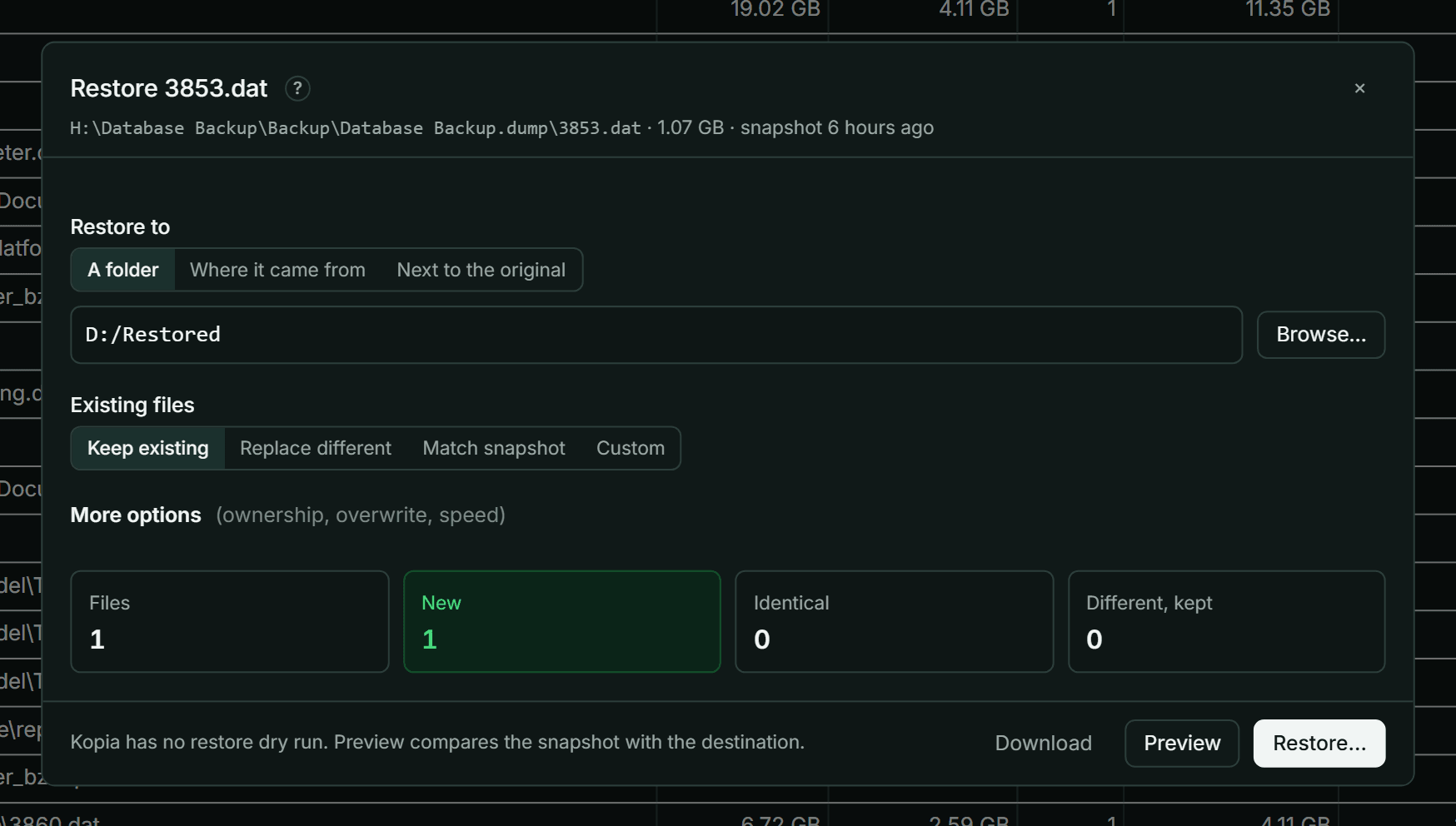
Restore writes files from a snapshot to a folder on the computer running KopiaLens.
Open it with Restore… on a file or folder in the Tree or Search, Restore on a version in the file panel, or Restore this snapshot… in the Snapshots tab. Restoring needs the Restores allowed permission or higher (Permissions).
- Check From: the snapshot the files come from. When more than one source holds the path, the one with the newest backup is picked.
- Choose Restore to:
- A folder: a folder you type or pick with Browse…. Files go straight into it, and files with the same name get a number. A path ending in
.zipwrites an uncompressed zip file instead. - Where it came from: back to the path it was backed up from.
- Next to the original: a dated copy beside the original, for example
notes (2026-09-01).txt.
- A folder: a folder you type or pick with Browse…. Files go straight into it, and files with the same name get a number. A path ending in
- Choose what happens to Existing files:
- Keep existing: only add what is missing. Nothing is overwritten.
- Replace different: replace files that differ from the snapshot. Extra files stay.
- Match snapshot: replace files that differ and delete files the snapshot doesn't have.
- Custom: set by More options.
- Select Preview. Kopia has no restore dry run, so KopiaLens compares the snapshot with the destination and shows what would happen.
- Select Restore… and confirm.
Warning: Match snapshot and Delete extra files delete files in the destination folder that the snapshot doesn't have. Check the preview's Deleted from the destination list first.
The restore runs as a job in the job panel.
The preview
The preview counts the files that are New, Identical (same size and modified time), Replaced, Different, kept and Deleted. It lists names this computer can't use, which can stop a restore. Tick Continue on errors to skip them.
With more than 100,000 files, the preview checks the first 100,000. Check all files checks the rest, which can take a while.
More options
More options has kopia's restore settings: Restore ownership, Restore permissions, Restore modified time, Skip existing, Continue on errors, Write atomically, Sparse files, Ignore permission errors, the overwrite options, Delete extra files and Parallel.
Shallow depth makes a shallow restore: folders deeper than this become small placeholder files instead of their contents, which kopia can restore in full later. Full files under restores files smaller than this size in full instead of as placeholders.
Download
Download saves a file, or a folder as a zip file, through your browser. It downloads the latest backed-up copy, or the version you picked in the file panel.
- A folder's zip file is built on the computer running KopiaLens first, so that computer needs as much free space as the folder takes.
- KopiaLens asks before a big download.
Mount
Mounting makes a snapshot appear as a read-only drive or folder, so you can open and copy files with your own tools.
- On Windows, a mounted snapshot gets a drive letter.
- On Linux and macOS, it appears in a folder inside the Snapshot mount folder (Settings → General).
- In Docker, mounting needs extra container settings (Mounting snapshots).
Mount from Mount on a snapshot, folder, file or version. When the computer running KopiaLens has a desktop (not Docker or a headless server), the item says Mount + open in its file manager, and the folder opens there too.
While a snapshot is mounted, the top bar shows 1 mounted (or more). Select it to list the mounts, Open one, Unmount one or Unmount all.