Tree
The Tree shows the folders and files in your backups by size, like a disk-space tool for snapshots. Use it to find what takes the most space and to act on it.
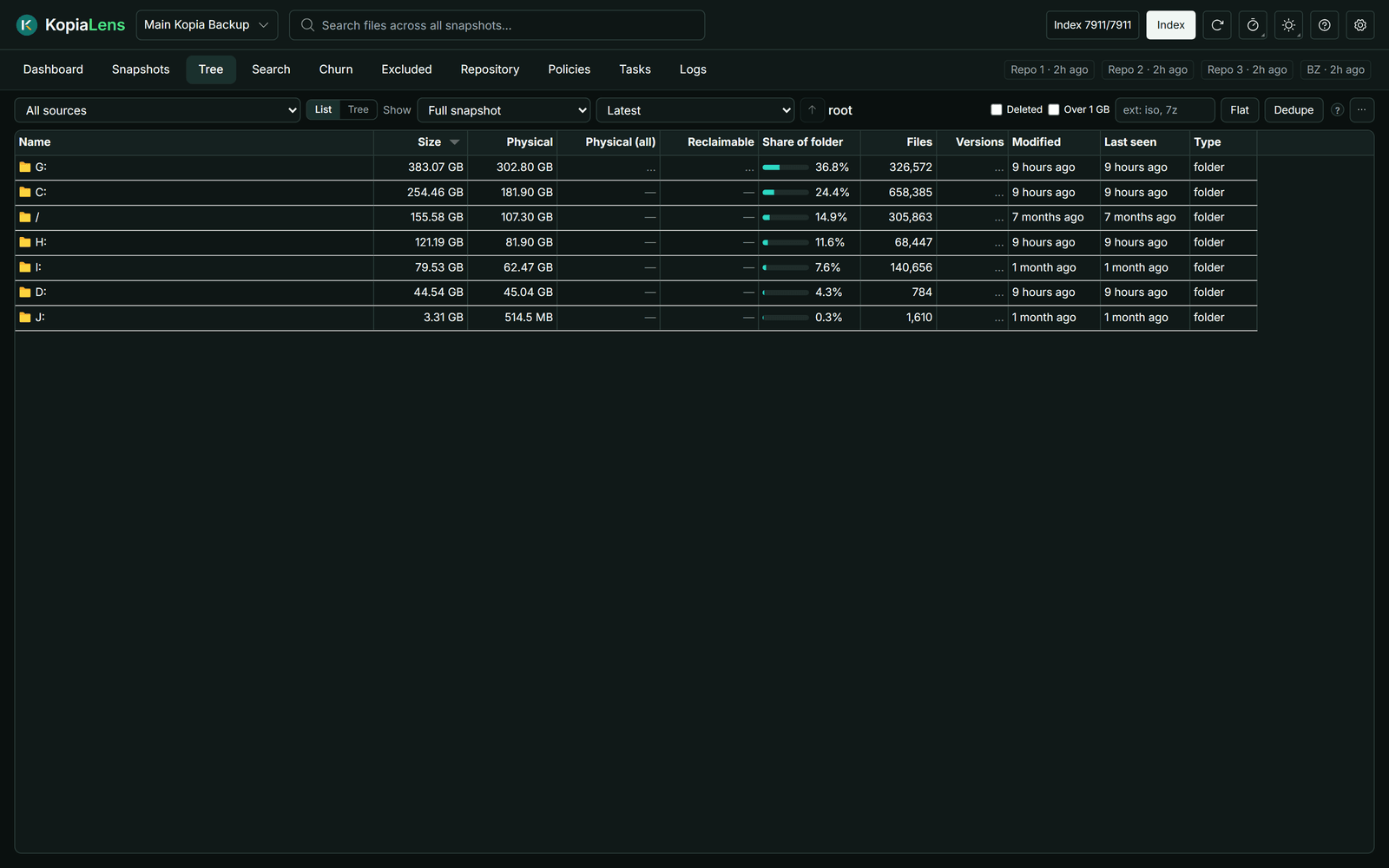
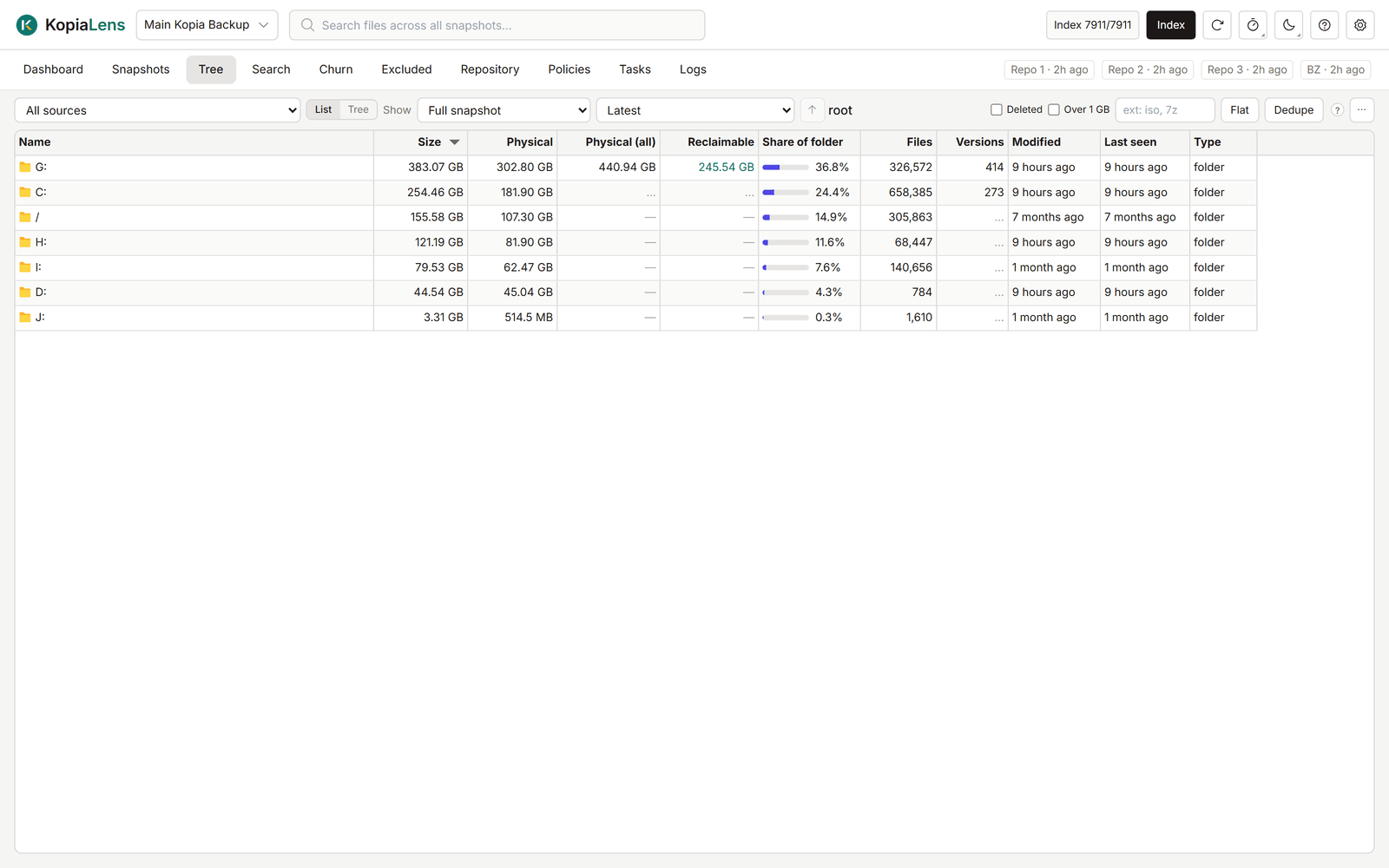
Choose what to look at
The bar at the top sets what the Tree lists.
- Source: All sources or one source. The Tree remembers its own choice per repository.
- Show:
- Full snapshot: everything in one snapshot, as it was then. With All sources, the latest snapshot of each source.
- Changed in this snapshot: only what changed since the snapshot before it.
- Reclaimable if deleted: the files whose space deleting this snapshot gives back, biggest first. With All sources, it lists only snapshots already worked out with Analyze in the Snapshots tab.
- All snapshots: every file that any snapshot holds, including files since deleted from disk.
- Snapshot: with one source, pick the snapshot. With All sources, pick Latest or a week. A week lists what each source backed up that week. Files that didn't change that week aren't listed.
Views
- List shows one folder at a time. Double-click a folder to open it. ↑ goes up one level.
- Tree opens folders in place with the arrow beside each name.
What it shows
| Column | What it means |
|---|---|
| Name | The file or folder |
| Size | Its size, as on disk (logical) |
| Physical | The space its newest version takes in the repository |
| Physical (all) | The space every version takes together. Worked out for the rows on screen |
| Reclaimable | The space that removing it from the backups gives back. Worked out for the rows on screen |
| Share of folder | Its share of the folder's size, as a bar |
| Files | Files inside it |
| Versions | For a file, how many versions are backed up. For a folder, how many different states it has had |
| Modified | When it last changed on disk |
| Last seen | When a snapshot last held it |
Right-click a column header to show Ext, Src (how many sources hold the file) and Type.
Filters
| Filter | What it does |
|---|---|
| Deleted | Only folders that hold files deleted from disk. Works with All snapshots or All sources |
| Over 1 GB | Only files of 1 GB or more |
| Extensions box | Only these extensions, for example iso, 7z |
| Flat | Every file under the folder in one list, without folders. Works in List view |
| Dedupe | Files with identical content once |
What you can do
Right-click a row:
- Open a folder, or see its Details (Folder panel or File panel).
- Show in Search lists the folder's files, or files with that name, in Search.
- Restore…, Download or Mount (Restore, download and mount).
- Exclude… keeps it out of future snapshots (Exclude).
- Prune versions… removes old versions and keeps the ones you choose (Prune versions).
- Delete from backups… or Delete folder from backups… removes it from existing snapshots (Delete from backups).
- Exclude & delete… does both: no future snapshots and none of the old ones.
- Copy path.
To act on several rows, select them with Ctrl or Shift and right-click.
The … menu has Mount this snapshot (read-only, opens the folder you're in) and Export CSV.