Deleting snapshots and sources
Deleting a snapshot removes that restore point and every file in it. Deleting a source removes every snapshot of a folder. Both free space only for data that nothing you keep still uses. To take only some files out of your snapshots instead, see Delete from backups.
Deleting snapshots and sources needs the Full Access permission (Permissions). Both are free.
Delete snapshots
- In the Snapshots tab, select the snapshots. Select unretained snapshots and Select identical duplicates in the right-click menu pick common sets.
- Select Delete snapshot… at the top right.
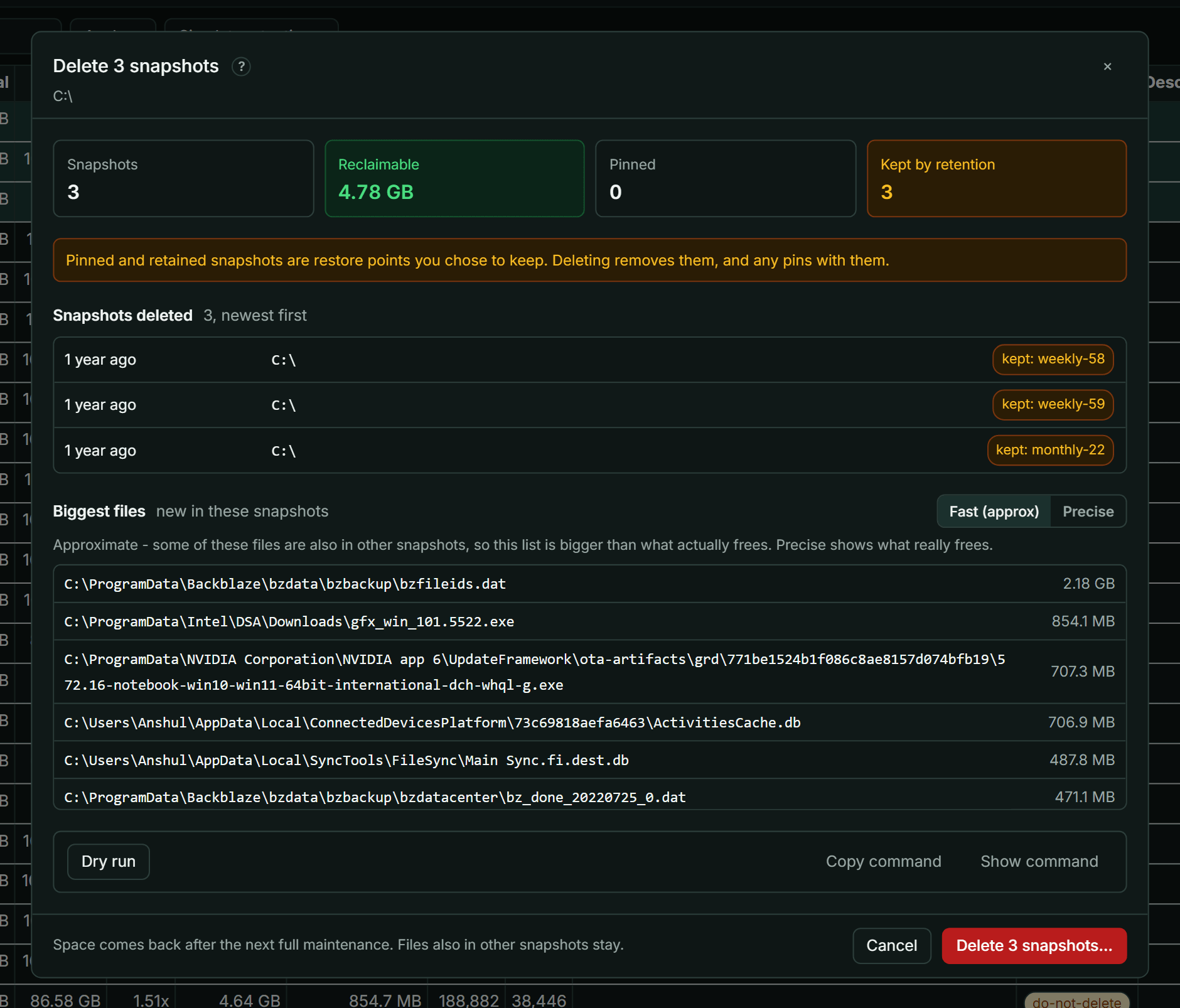
- Check the panel:
- Snapshots: how many, and the time span they cover.
- Reclaimable: the space the whole set gives back. KopiaLens works out the exact figure for the set, which is often more than the snapshots' own figures added up.
- Pinned and Kept by retention: restore points you chose to keep. Deleting removes them, and their pins with them.
- Snapshots deleted: the list, newest first.
- Biggest files: the largest files the delete gives back. Fast (approx) lists the files these snapshots added, some of which other snapshots still hold. Precise lists only what really frees. The first precise list can take a minute.
- Select Dry run. Kopia checks the delete without changing anything.
- Select Delete and confirm.
When no analysis exists yet, the reclaimable figure adds up each snapshot's own number, and the panel says so. Select Analyze in the Snapshots tab for the exact figure.
Delete a source
Deleting a source deletes every snapshot of that folder. Right-click a source on the Dashboard and select Delete this source….
- Check the source, how many snapshots it has, and how many are pinned. Pinned snapshots are deleted too.
- Tick Also delete this source's policy to remove the policy as well. Otherwise it stays, and a new snapshot of the folder uses it again.
- Select Dry run to check it first.
- Select Delete and type
deleteto confirm.
Warning: this deletes every backup of the folder. It can't be undone.
After a delete
The delete runs as a job in the job panel. The snapshots disappear from the lists when the job ends. The space comes back after the next full maintenance (When the space comes back).
Snapshots that no retention rule and no pin keeps don't need deleting by hand: each time kopia takes a snapshot of a source, it applies the source's retention and deletes them.