Settings
Settings holds everything you can change in KopiaLens. Open it with the gear button at the top right. Changes save as you make them. A few are marked restart: they apply after KopiaLens restarts. Restart… at the bottom of Settings, next to Close, restarts it (desktop app, Docker and Home Assistant).
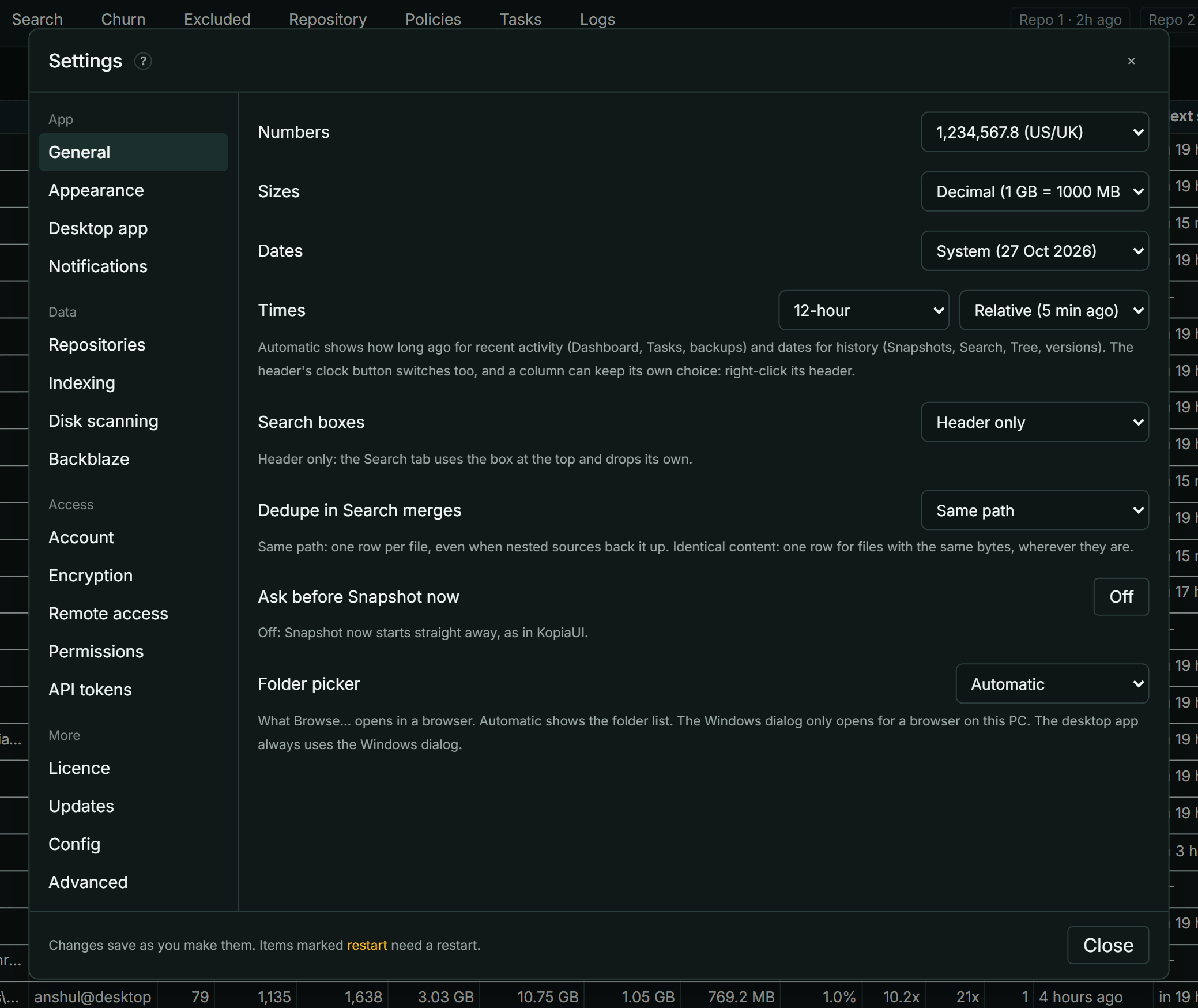
To find a setting, type in Search settings above the section list (or press Ctrl+F or / while Settings is open). Pick a result to open its section with the setting highlighted. Type changed to list every setting you changed.
A dot before a setting's name marks one you changed; hover it to see the default. The reset button next to the name puts that setting back, and Reset this page at the bottom of a section does the whole section. Reset all… is in Config.
Each section has a ? button that opens its help. Some sections have their own page:
| Section | Page |
|---|---|
| Notifications | Notifications |
| Repositories | Repositories |
| Account | Sign-in and your account |
| Encryption | Encryption |
| Remote access | Remote access and HTTPS |
| API tokens | API tokens |
| Licence | Free and Pro |
| Updates | Update checks and usage stats |
The other sections are described below.
General
| Setting | What it does |
|---|---|
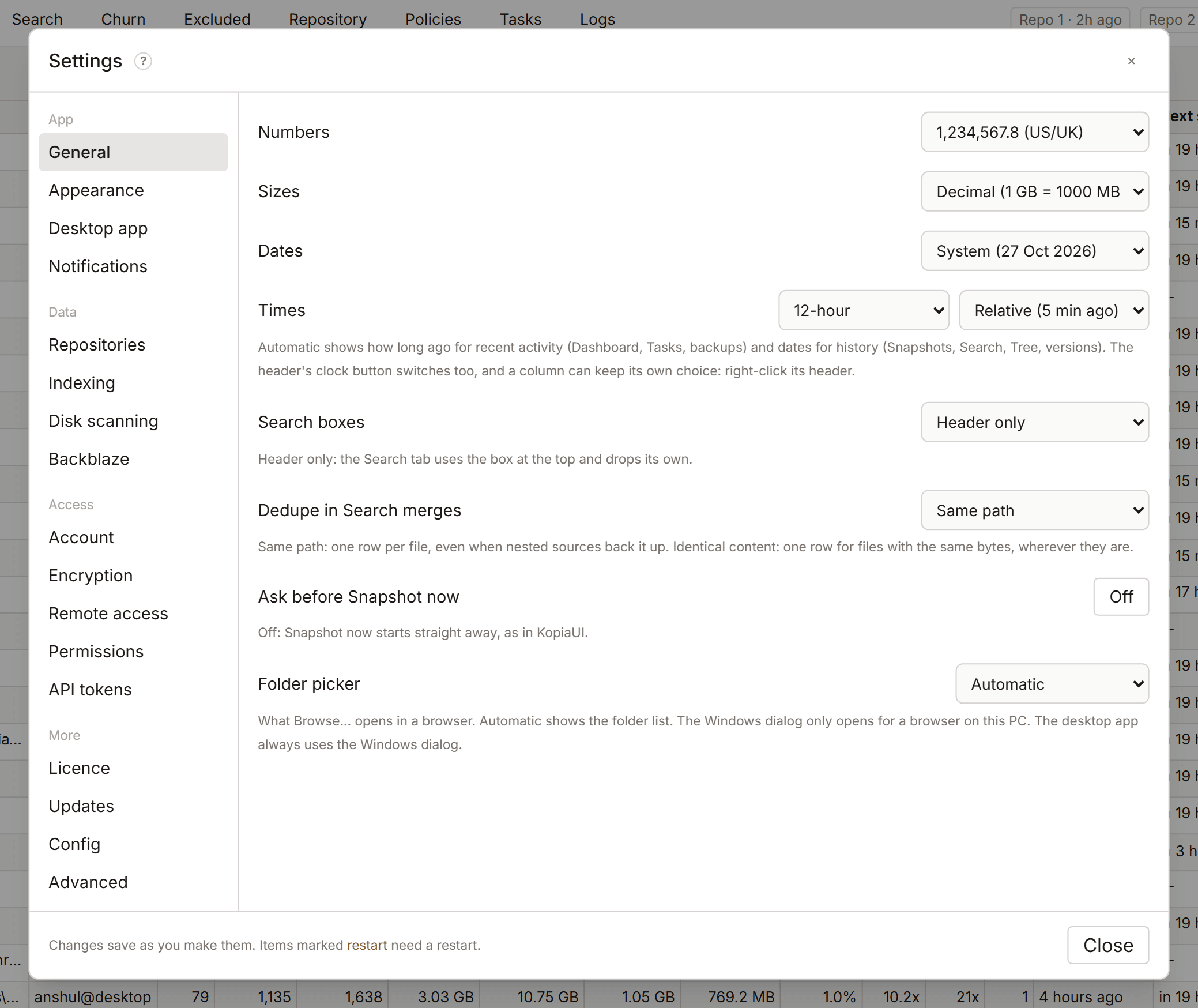
| Numbers | How numbers are written, for example 1,234,567.8 or 1.234.567,8. System follows your computer |
| Sizes | Decimal (1 GB = 1000 MB, as kopia shows them) or Binary (1 GiB = 1024 MiB) |
| Dates, Times | How dates and clock times are written. Automatic (the default) shows how long ago for recent activity (Dashboard, Tasks, backups) and dates for history (Snapshots, Search, Tree, versions). Relative always shows how long ago. Exact always shows the time. The clock button in the header switches between them. Right-click a time column's header to give it its own choice, including date and how long ago together |
| Search boxes | Header and Search tab, or Header only: the Search tab then uses the box at the top of the window |
| Dedupe in Search merges | What Dedupe in Search merges: Same path or Identical content (Search) |
| Ask before Snapshot now | On by default. Off: Snapshot now starts straight away, as in KopiaUI |
| Folder picker | What Browse… opens in a browser: the KopiaLens folder list, or the Windows dialog (only for a browser on the computer running KopiaLens). The desktop app always uses the Windows dialog |
| Snapshot mount folder | On Linux and macOS, mounted snapshots appear in folders inside this one |
| Mount folder on the host | In Docker: the host folder mapped to the container's mount folder, so mount paths show as you see them on the host |
Appearance
| Setting | What it does |
|---|---|
| Theme | A light and a dark theme. System follows your computer's light or dark setting. Saved on the server, so it follows you between browsers |
| Density | Row height and text size. Custom shows a slider in 1% steps |
| Table alignment | How table columns line up unless a table or column has its own choice (Tables). Auto, the default, puts numbers on the right and text on the left |
| Tab order | Reset to default puts the tabs back in their first order. To move a tab, drag it in the tab row |
| Font | The font for the whole app |
| File and folder icons | The icons before names in Tree, Search, Churn, Excluded and the panels: Material (the default, an icon per file type), Filled, Outline, Fluent Emoji or System Emoji (drawn by your device, so it looks different on other systems) |
| Sort arrows in table headers | Sorted column only or Every column |
| Detail panel layout | Classic shows every section of the file and folder panels in one scroll. Tabbed keeps the summary on screen and groups the rest |
| Documentation opens as | A popup or A side panel |
| Policy editor layout | Tabs (one section at a time) or Scroll (every section stacked) |
| Leaving a policy with unsaved changes | Ask first, or Keep the changes as a draft |
| Repo labels | Short (Repo 1, Repo 2, BZ) or Full (the repository's name) in chips, headers and log columns |
| Logo | The mark next to the KopiaLens name |
| Retention chips | The colours of retention reasons in the Snapshots tab: One colour, By type, like KopiaUI, or Custom colour |
| Pro badge | The small Pro mark next to the KopiaLens name while a licence is active |
Logo picks the mark next to the KopiaLens name in the header and on the browser tab: Disc (the default), K, Ring or Tile. None hides it.
Desktop app
These apply to the KopiaLens desktop app and its tray icon.
| Setting | What it does |
|---|---|
| Start at logon | KopiaLens starts in the tray when you sign in to the computer. The same switch as in the tray menu |
| Sign in automatically | The desktop app's window opens signed in, with no password asked. A browser, even on the same computer, still asks for it. Off by default |
| Clicking the tray icon | Opens KopiaLens or Shows the menu. Right-clicking always shows the menu |
| Double-clicking the tray icon | Opens KopiaLens or Does nothing |
| Tray icon | The icon in the system tray |
Tray icon picks the icon KopiaLens shows in the system tray. Disc is the default. K and Ring switch between their light and dark versions to suit the taskbar.
Desktop shortcut icon. The installer gives the shortcut the Disc. To use another logo, right-click the shortcut, choose Properties → Change Icon, and pick a file from the icons folder inside the KopiaLens folder: KopiaLens Disc.ico, KopiaLens K.ico, KopiaLens Ring.ico or KopiaLens Tile.ico.
Indexing
| Setting | Default | What it does |
|---|---|---|
| Kopia indexing | Once a day at 23 | When the index updates: Once a day, at a set time, Every N hours, or Off, only when I start it (Indexing) |
| Pause indexing | Stops automatic index runs for a while | |
| Dashboard numbers | Rebuild with nightly indexing | Or Also rebuild during the day. The Dashboard's refresh button rebuilds them at any time |
| Full rebuild | Rebuild full index reads every snapshot again. Rarely needed, and much slower | |
| Index backups | Older versions of the index and a copy in another folder (Index backups) | |
| Quick refresh | 1 hour, while you use KopiaLens | How often next snapshot times and the Search start page are brought up to date. While you use KopiaLens skips it when nobody has used KopiaLens in that time; Off, nightly only leaves it to the nightly run. Repository details refresh once a day, and when you open them |
| Dashboard auto-refresh | 30 minutes | How often an open Dashboard checks for new numbers |
| Dashboard rebuild interval | 4 hours | With Also rebuild during the day: how often the size columns are rebuilt |
Disk scanning
How KopiaLens reads your disks for the Excluded tab and rule previews, and the network shares and other places it checks. Every setting is on its own page: Disk scanning.
Backblaze
| Setting | What it does |
|---|---|
| Add Backblaze | Adds the Backblaze view when Backblaze Personal Backup is on this computer (Backblaze) |
| Backblaze updates | When Backblaze's file lists change, or Off, only when I start it. Separate from kopia indexing |
| Backblaze data folder | Where the Backblaze client keeps its file lists. Empty finds it on its own. KopiaLens never writes there |
| File index format | Parquet (the default, smaller and faster) or SQLite (the older format). Switching rebuilds it at the next Backblaze update |
| Reindex minimum gap | How long to wait after Backblaze's own scan changes before reading it again |
| History retention | How many days of folder history to keep for the trends |
| Collapse prefixes | Paths that show as one row in the Queue, Churn and folder views, instead of one row per subfolder |
| Session history folder | A readable copy of Backblaze's older event logs, for Import archived history in the Sessions tab |
Permissions
Permissions set what KopiaLens may change in a repository. They apply to you, to scripts and to AI agents alike.
| Level | What it allows |
|---|---|
| Read-only | Browse, search, mount and download |
| Restores allowed | Also restore to disk |
| Non-destructive | Also take snapshots, pin, change policies and descriptions, and run maintenance |
| Full Access | Also delete files, snapshots and sources. The default |
Set the level for All repositories, then change it for single repositories under Per repository if needed. The ? beside All repositories opens this section. Read-only and Restores allowed also stop KopiaLens's scheduled backups for that repository.
When a KopiaLens password is set, raising a level to Full Access asks for it. Below Full Access, the repository picker in the header shows a small eye (Read-only) or lock icon. Its tooltip and the repository menu name the level, and Permissions: in that menu changes it. Actions the level doesn't allow are greyed out.
API tokens have their own permission on top. A token can never do more than the repository's level allows.
Config
Backups of these settings keeps copies of your KopiaLens settings, repository list, sign-in accounts and encryption key files. KopiaLens makes a copy before changes, once a week and before upgrades. Your kopia backups aren't part of it.
- Back up now makes a copy now.
- Restore… on a copy lists every change before anything is replaced: each setting as it is now and in the copy, repositories added, removed or changed, table layouts, accounts and keys.
Some changes affect who can get in or what KopiaLens may change: sign-in and remote access, permissions, who runs backups, accounts and keys. They start with Keep current ticked, so the restore leaves them as they are now. Untick Keep current to restore them too.
Export to a file saves your settings and repository list as one file, to move KopiaLens to another computer or to keep a copy elsewhere. Tick Include sign-in accounts or Include encryption key files to add them. The file then holds password hashes or your locked encryption key, so keep it somewhere private.
Import from a file reads an exported file. You see the same list of changes, with Keep current, before anything is replaced.
Reset all… puts every changed setting back to its default, after making a backup. Sign-in, encryption, remote access, repositories, the ports, update checks and usage stats stay as they are; reset those one at a time.
Advanced
These have sensible defaults. Change them when you have a reason.
Indexing
| Setting | Default | What it does |
|---|---|---|
| Memory limit | Automatic | The most memory each repository's index may use, in the app and while indexing. Automatic is based on the computer's memory (restart) |
| Processor threads | Automatic | How many processor threads each repository's index may use, in the app and while indexing. Automatic is up to half the computer's processors in the app (fewer with a small memory limit) and up to 4 while indexing. More threads are faster but need more memory (restart) |
| Indexing time limit | 4 hours | A run that takes longer is stopped. The next run continues where it left off |
| First index time limit | 24 hours | The same for a first index |
| Give up on an unreachable repository after | 30 minutes | The run stops, keeps its progress, and the next repository can index |
| Stop an index that makes no progress after | 60 minutes | 0 turns it off |
| Update the index after deletes | 5 minutes | How long after the last delete |
| Most files in one delete plan | 200000 | A bigger match is planned for its biggest files first |
| Retry after a failed run | 15 minutes | How long to wait before trying again |
| Retries per scheduled slot | 1 | 0 means a failed run waits for the next scheduled one |
| When quitting KopiaLens | Let indexing finish | Or Stop indexing. Restart always lets indexing finish |
| Folder reclaimable space ahead of time | 15 minutes | How long each night's run spends working out folder sizes ahead of time, biggest folders first. Other folders are worked out when you open them. 0 turns it off |
| Quiet period after startup | 5 minutes | How long after KopiaLens starts before background work begins (restart) |
| Ranked files | 10000 | How many of the biggest files are ranked exactly for Search's sorting | | Listing backend | Run kopia when needed | How KopiaLens asks kopia for snapshot lists. Keep a kopia server running is the other choice (restart) |
App
| Setting | Default | What it does |
|---|---|---|
| Debug log | Off | Writes detailed diagnostics beside the normal app log. Turn it on only to find a problem |
| Experimental features | Off | Shows the Experimental section |
| Local control port | Off | Lets scripts and AI tools on the computer running KopiaLens check, restart or quit it through the desktop app. Web pages can't use it (restart) |
| Ports | 7123 and 7124 | The app's port and the control port. Change them if another program uses them, or to run a second KopiaLens. A bookmark or reverse proxy then needs the new port (restart) |
| Log cleanup | 90 days | How long job, dry-run and mount logs are kept. The newest 100 are always kept |
| Task history | 90 days | How long finished backups and maintenance stay in the Tasks tab |
| When another app stops running backups | KopiaLens takes over again | Or Wait for me to resume (Who runs backups) |
Experimental
Shown when Experimental features is on (Advanced). These features are still being built and may change or go away. Reload the page after turning one on or off.
| Setting | Default | What it does |
|---|---|---|
| Notes | Off | Adds a Notes button to every page, for writing notes about what you see, with a screenshot. Notes are kept in the notes folder inside KopiaLens's data folder |
About
About shows the KopiaLens and kopia versions, whether KopiaLens runs as the desktop app or a server, where its data folder is, the data format version and the system it runs on.
- Check now checks for a newer version (Getting help).
- Copy details copies these facts for a bug report.
- Create diagnostics bundle… collects logs and details into one file (Getting help).